



I AM A TENANT  Resources
Viewing the OCH website in another language
A step by step guide on how you can translate this website
Questions? Comments?Google Chrome
Mobile – iOS (iPhone / iPad) and Android
1. Go to och-lco.ca
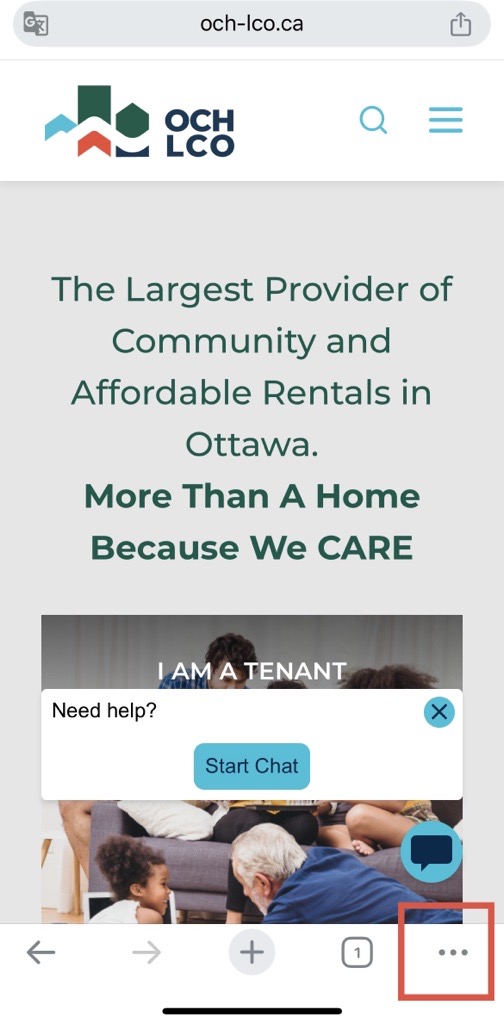
2. Click on the three dots button at the bottom right
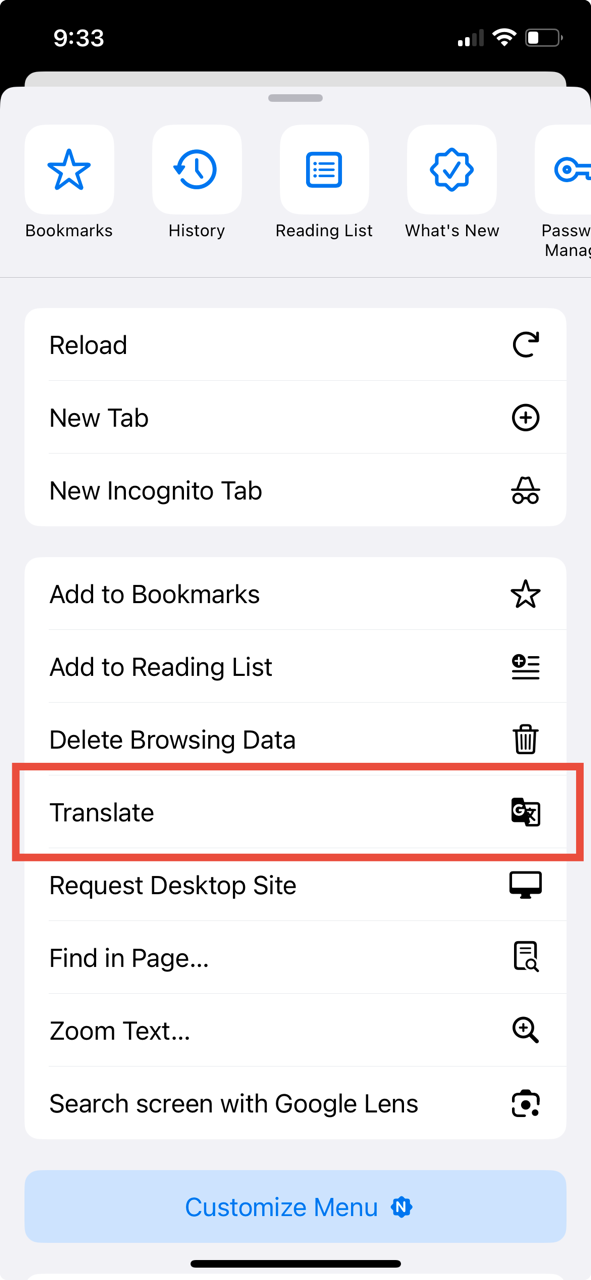
3. Scroll down and click “Translate”
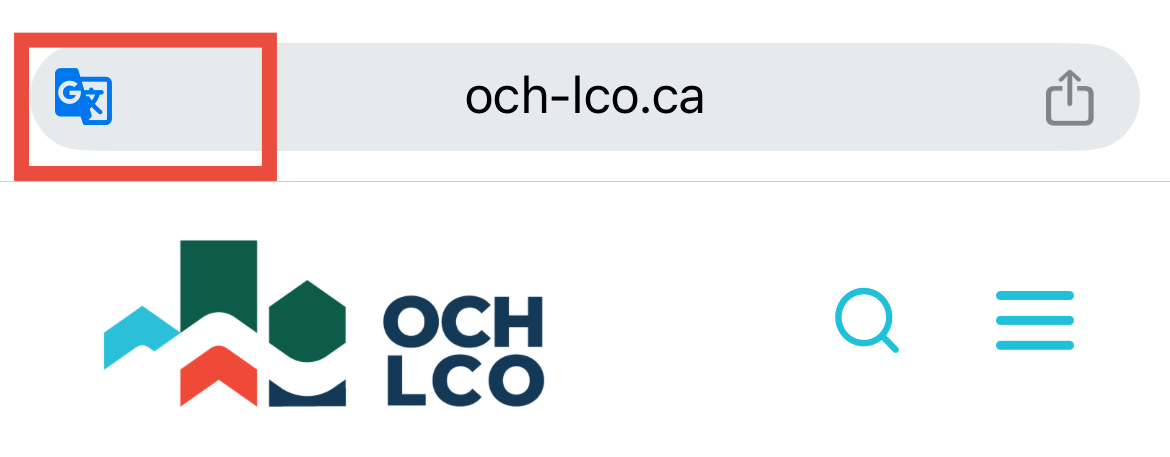
4. A little Google Translate icon will appear in the top search bar. Click on it.
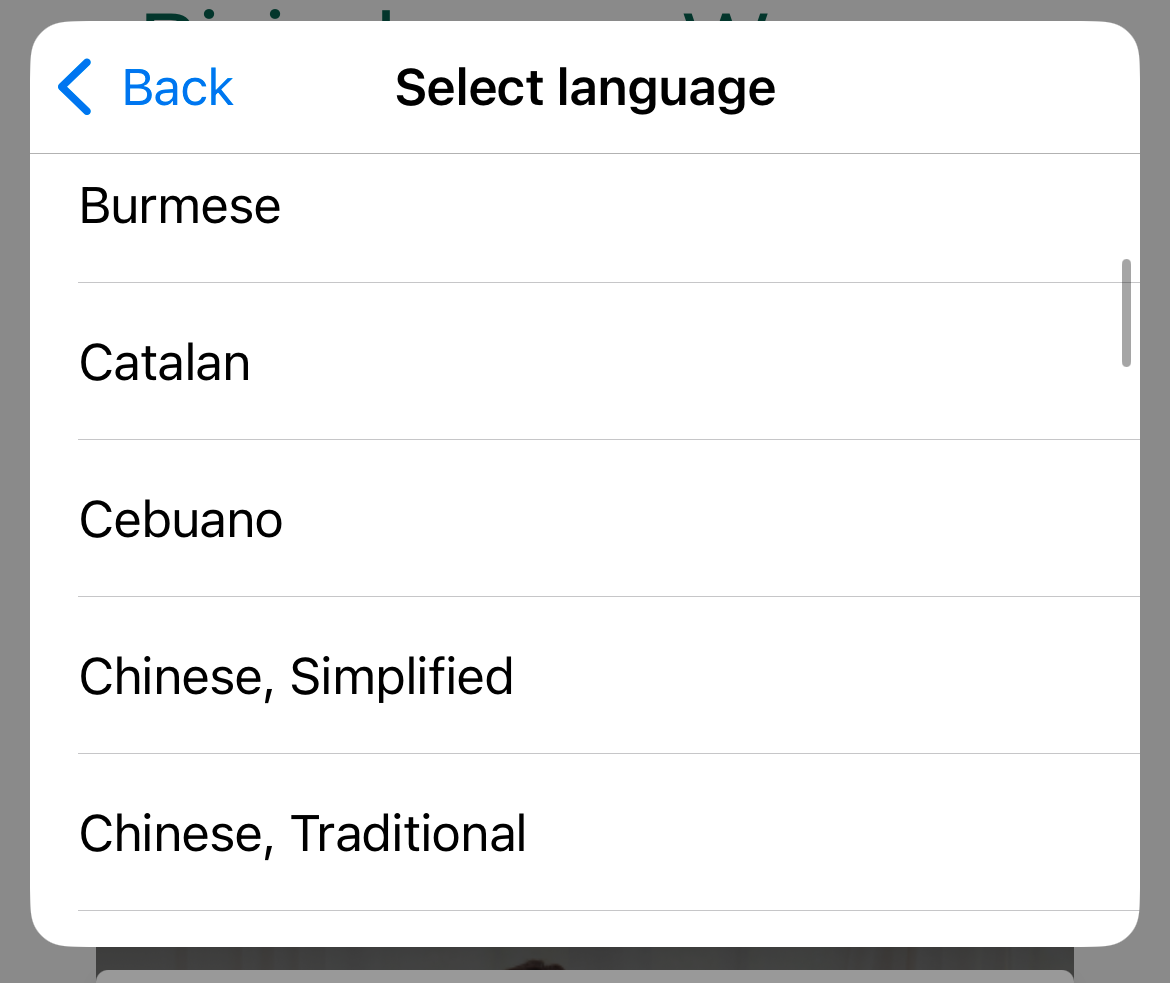
5. Select your language from the drop down menu. Then click “Translate”
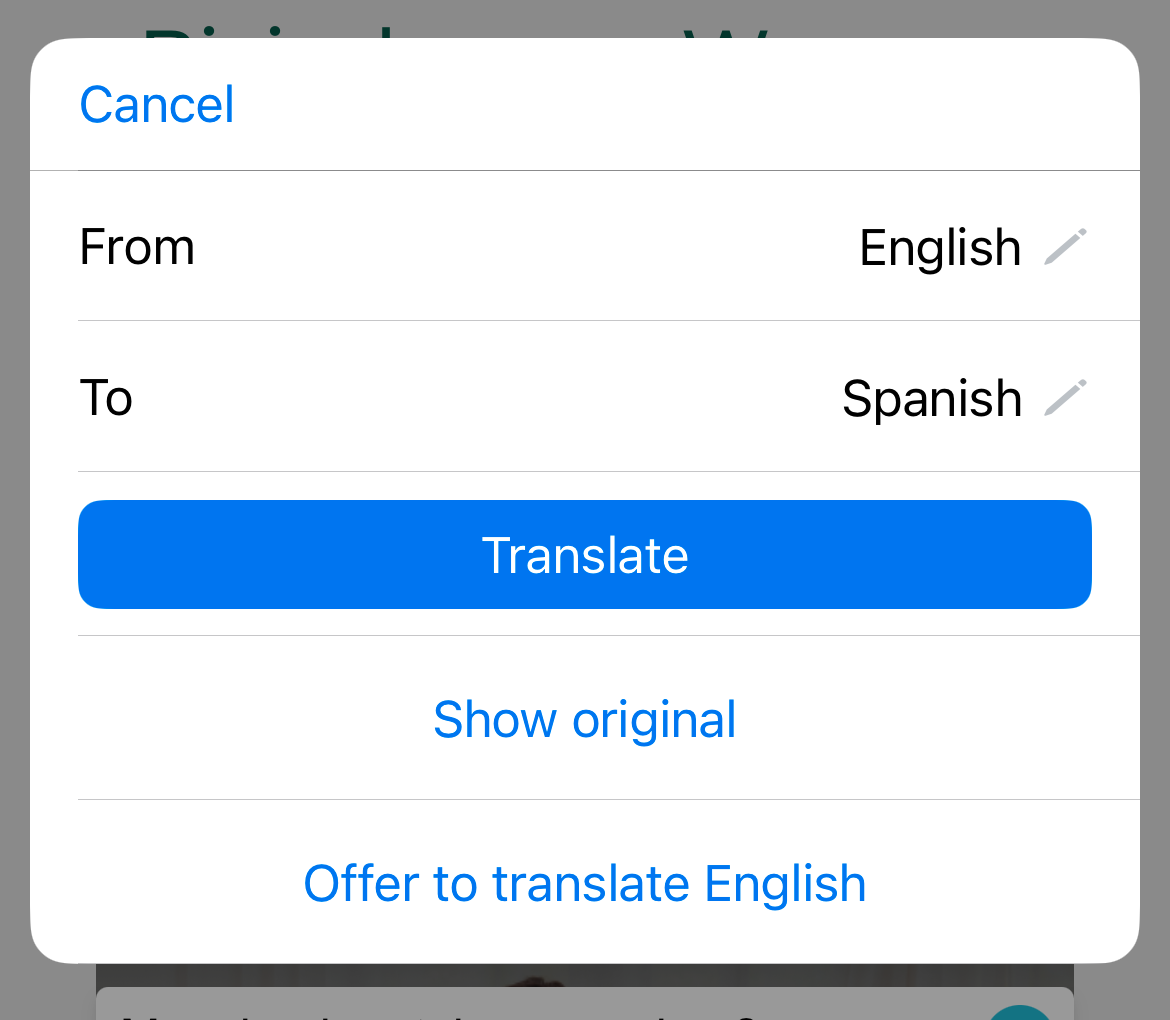
6. The page you’re on is now translated
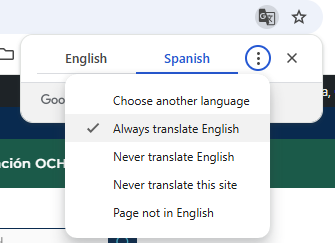
To always translate to your desired language: Click on the Google Translate icon again, then click on “Always translate English.”
To remove that setting, simply click on the Google Translate icon again, then “Show original”
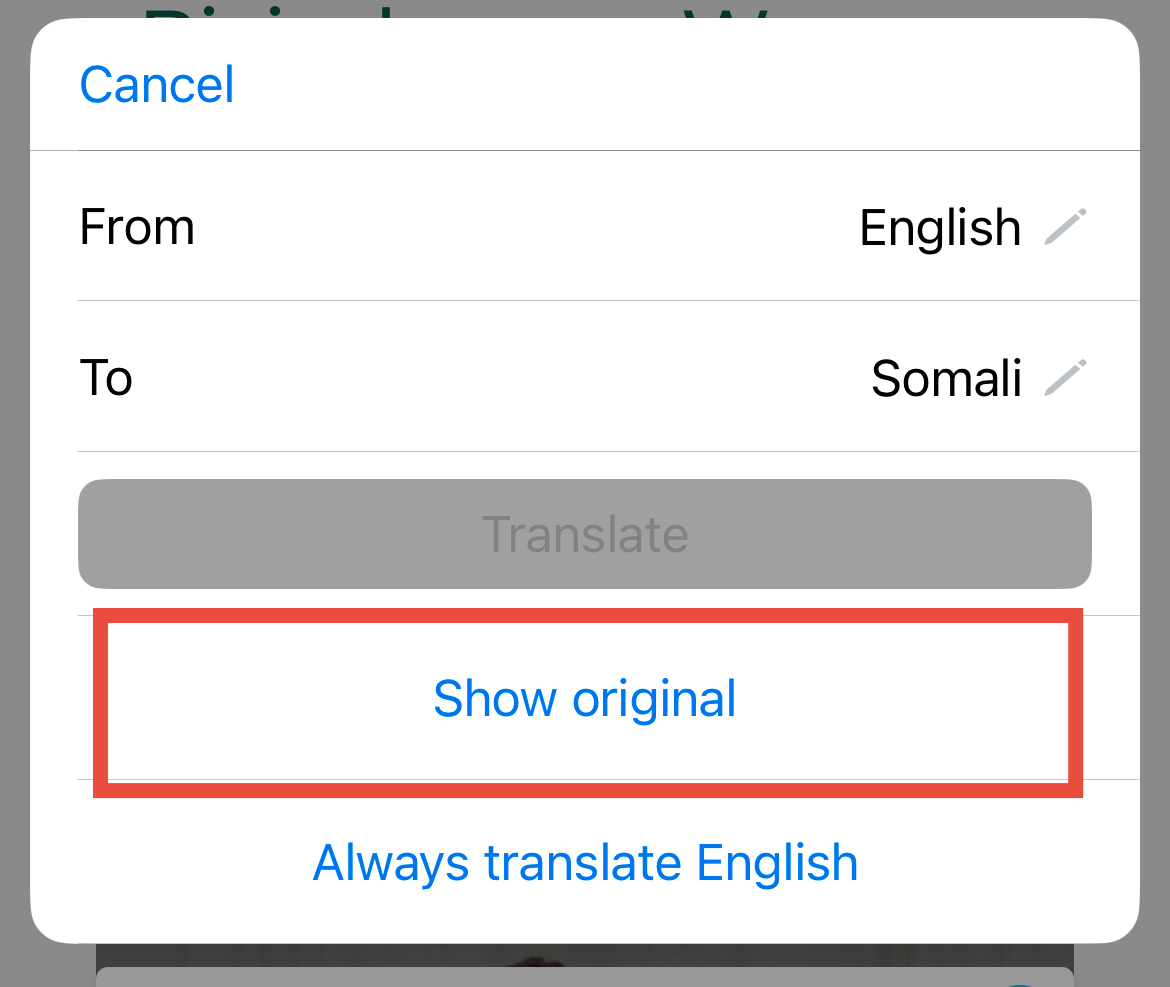
You can also Translate portions of the site by highlighting the desired text, then selecting “Google Translate” in the menu that appears.
Desktop (Windows / macOS / Linux)
1. Open Chrome
2. If your browser is already set to a different language, Chrome should prompt to translate the page or display the translate icon within the URL bar. Click ‘Translate’
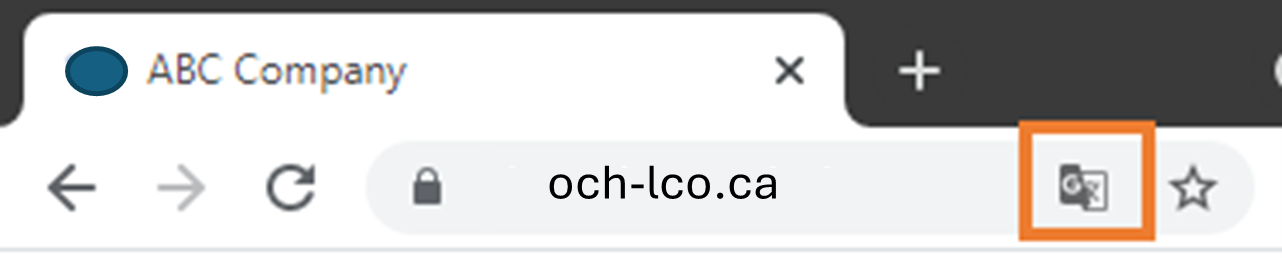
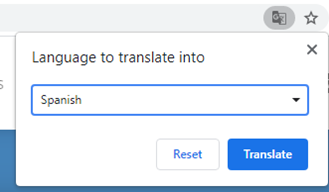
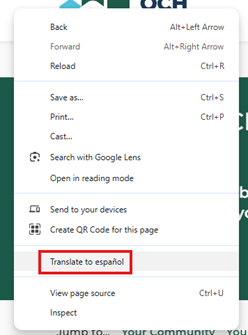
If Chrome does not automatically prompt to translate and/or the translate icon does not display in the URL bar, right click anywhere on the page and choose ‘Translate to …’
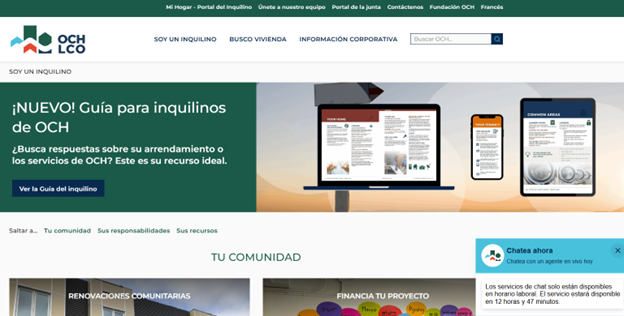
The page is now displayed in the desired language.
To automate this process, choose the option to “Always translate English” from the Translate menu at the top.
To set a default language in Chrome:
- Open Chrome
- Click the setting icon in the upper right corner

- Choose ‘Settings’
- Scroll to the bottom and expand ‘Advanced’

- Scroll to Languages and expand the ‘Language’ menu
- Click ‘Add Languages’
- Select your desired language and click ‘Add’
- Once added, click the three dot icon to the right of the language and check the box for ‘Offer to translate pages in this language ‘
Translate with Apple Safari
Mobile – iPhone / iPad (iOS)
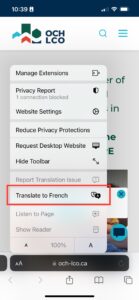
1. Open Safari and go to och-lco.ca
2. Click on the settings option icon (left side of the search bar)
3. Then click on “Translate to…”
4. If your device is already set to a different language, Safari will automatically suggest that language.
To add a language, go to your phone settings:
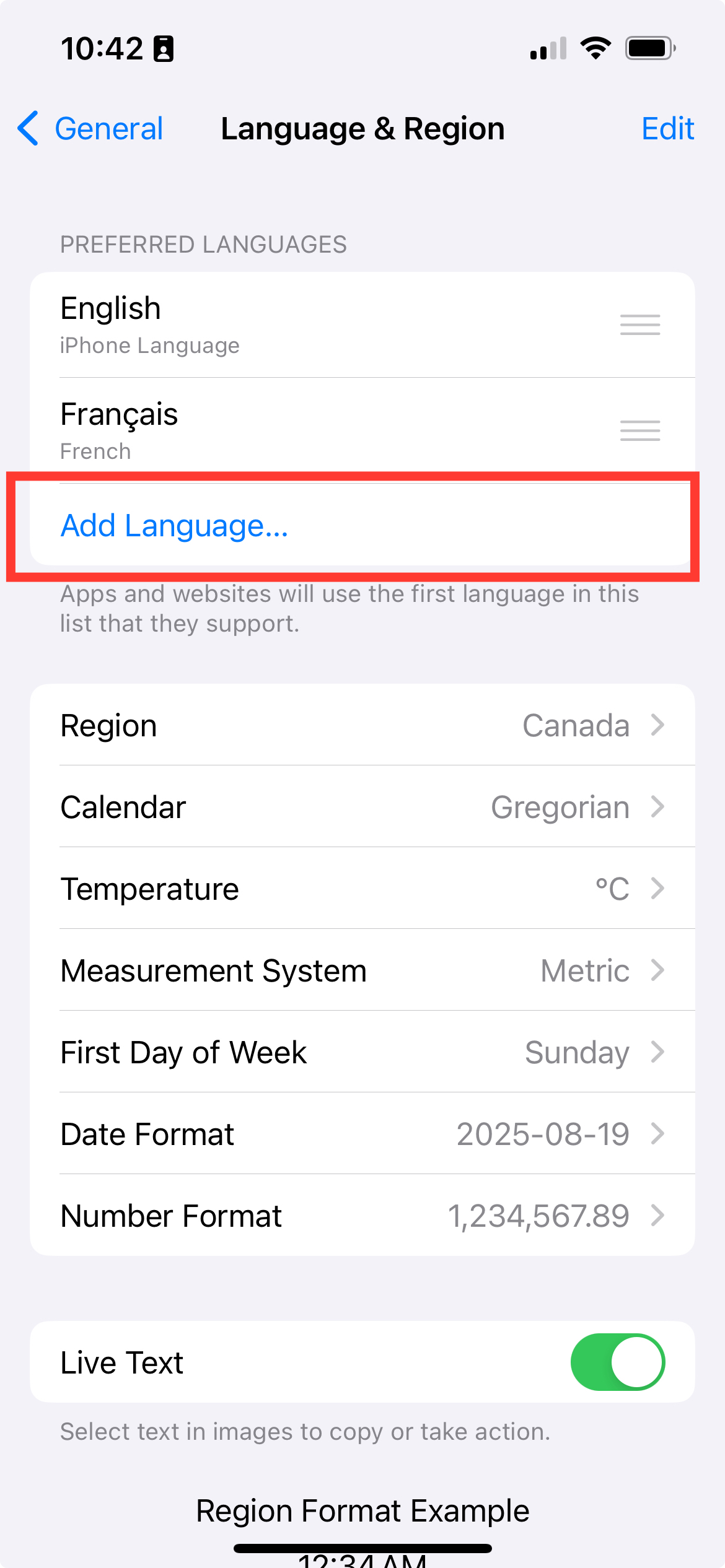
- Go to General
- Click Language & Region
- Click Add Language
- Select a language (and choose whether you want that language to be a default in the next window)
- Now the language has been added to your options on Safari.
Desktop – macOS
- Open Safari and go to och-lco.ca
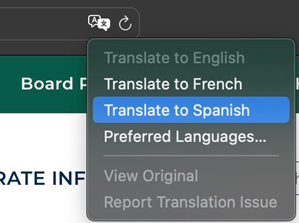
- Click on the language icon (right side of the search bar)
- Then click on “Translate to…”
If your device is already set to a different language, Safari will automatically suggest that language.
To add a language:
1. Click on Preferred Languages
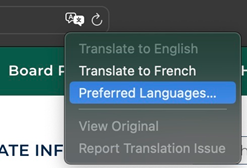
2. This will bring you to the Language & Region settings
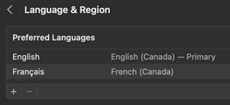
3. Click Add Language, an select a language
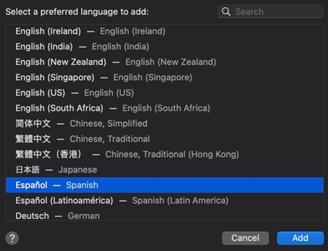
4. Choose whether you want that language to be a default in the next window
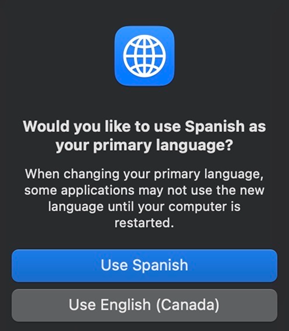
5. Now the language has been added to your options on Safari
Translate with Microsoft Edge
Desktop
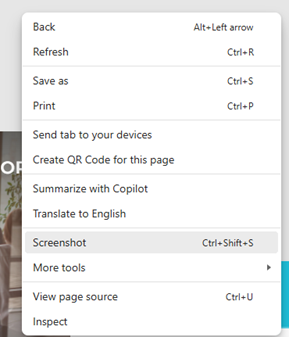
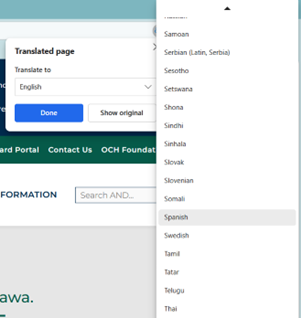
1. Right click, then select “Translate to…”
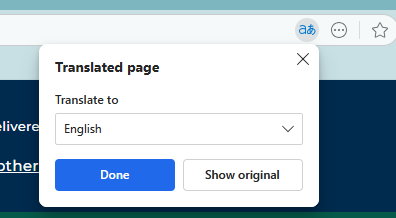
2. In the top bar, click on the language icon, then select the desired language in the dropdown menu
Translate with Samsung Internet (Android)
Samsung Internet (Android)
Samsung Internet supports webpage translation via a Translator extension (often powered by partners like Google or its own translator add-on).
Steps:
- Open Samsung Internet and visit a page in another language.
- If you have the Translator feature/extension enabled, a translate prompt or option will appear.
- If not present, install/enable the Translator for Samsung Internet add-on from the Galaxy Store, then use the translate button in the browser to convert the page.
Note: Samsung Internet is primarily an Android browser; there is no mainstream iOS version.
Translate with Mozilla Firefox
Firefox offers a built-in page translation feature (rolled out in recent versions) and also supports selection translation. Historically, users relied on extensions, but modern Firefox includes translations in the browser.
Desktop (Windows / macOS / Linux)
Steps:
- Open Firefox to a page in another language.
- If supported, a translation prompt or icon appears; click Translate to convert the page.
- You can also right-click a selection and pick Translate selection (feature added in later versions). Manage preferences in Settings > Language.
Mobile (Android / iOS)
Steps:
- Firefox mobile may either show a translate option or require enabling the feature in Settings (availability depends on version).
- If not present, users can install a translation add-on from the Firefox Add-ons store.

The Housing Services Act has been updated – read more to find out how this affects tenants.
See Updates
